AEM 6540 - Assets Dynamic Media Standalone Script to search Assets in Scene7

Goal


You have a AEM Dynamic Media instance and the requirement is to get list of all Image Sets in associated Scene7 account. The following standalone java program explores using the Scene7 wsdl IpsAPI to connect, search and fetch Image Sets

For listing folders check this post

Github

Solution


1) Login to AEM CrxDe - http://localhost:4502/crx/de and get the Scene7 Company handle used in Dynamic Media configuration eg. /conf/global/settings/cloudconfigs/dmscene7/jcr:content


2) Open following AEM config page and from the list of scene7 endpoints get the one for your region (available in AEM DM configuration, step 1 above eg. northamerica-enterprise)

                     http://localhost:4502/libs/settings/dam/scene7/endpoints.html


3) Get the Scene7 IpsAPI wsdl SDK from AEM installation launchpad, by looking for the bundle number folder, copy to your program classpath folder and rename bundle.jar to versioned jar name eg. cq-scene7-wsdl-1.3.2.jar


4) In your standalone program eg. SearchScene7Assets classpath add the following jars (available in Adobe Repo - https://repo.adobe.com/nexus/content/groups/public/)

                            C:\dev\projects\templibs\scene7\cq-scene7-wsdl-1.3.2.jar
                            C:\Users\<user>\.m2\repository\commons-codec\commons-codec\1.11\commons-codec-1.11.jar
                            C:\Users\<user>\.m2\repository\commons-httpclient\commons-httpclient\3.1\commons-httpclient-3.1.jar
                            C:\Users\<user>\.m2\repository\commons-logging\commons-logging-api\1.1\commons-logging-api-1.1.jar 

5) Add the following logic in standalone program SearchScene7Assets to connect to Scene7, get and parse search response

import com.scene7.ipsapi.AuthHeader;
import com.scene7.ipsapi.SearchAssetsParam;
import com.scene7.ipsapi.StringArray;
import org.apache.commons.httpclient.HttpClient;
import org.apache.commons.httpclient.methods.ByteArrayRequestEntity;
import org.apache.commons.httpclient.methods.PostMethod;
import org.w3c.dom.Document;
import org.w3c.dom.Element;
import org.w3c.dom.Node;
import org.w3c.dom.NodeList;

import javax.xml.bind.JAXBContext;
import javax.xml.bind.JAXBException;
import javax.xml.bind.Marshaller;
import javax.xml.parsers.DocumentBuilder;
import javax.xml.parsers.DocumentBuilderFactory;
import javax.xml.xpath.XPath;
import javax.xml.xpath.XPathConstants;
import javax.xml.xpath.XPathFactory;
import java.io.ByteArrayInputStream;
import java.io.StringWriter;
import java.util.HashMap;
import java.util.Map;

public class SearchScene7Assets {
    private static String S7_NA_IPS_URL = "https://s7sps1apissl.scene7.com/scene7/api/IpsApiService"; //available in AEM http://localhost:4502/libs/settings/dam/scene7/endpoints.html
    private static String S7_COMPANY_HANDLE = "c|230095"; // available via api or in AEM /conf/global/settings/cloudconfigs/dmscene7/jcr:content
    private static String S7_USER = "";
    private static String S7_PASS = "";
    private static String STAND_ALONE_APP_NAME = "Experiencing AEM";

    public static void main(String[] args) throws Exception {
        AuthHeader authHeader = getS7AuthHeader();

        Marshaller marshaller = getMarshaller(AuthHeader.class);
        StringWriter sw = new StringWriter();
        marshaller.marshal(authHeader, sw);

        String authHeaderStr = sw.toString();

        SearchAssetsParam searchAssetsParam = getSearchAssetsParam();

        marshaller = getMarshaller(searchAssetsParam.getClass());
        sw = new StringWriter();
        marshaller.marshal(searchAssetsParam, sw);

        String apiMethod = sw.toString();

        byte[] responseBody = getResponse(authHeaderStr, apiMethod);

        Map<String, String> imageSets = parseResponse(responseBody);

        printImageSets(imageSets);
    }

    private static void printImageSets(Map<String, String> imageSets){
        if(imageSets.isEmpty()){
            System.out.println("No imagesets in account - " + S7_COMPANY_HANDLE);
            return;
        }

        System.out.println("Image Sets : ");

        for(Map.Entry entry : imageSets.entrySet()){
            System.out.println("    " + entry.getKey() + " - " + entry.getValue());
        }
    }

    private static Map<String, String> parseResponse(byte[] responseBody) throws Exception{
        Map<String, String> imageSets = new HashMap<String, String>();

        DocumentBuilderFactory factory = DocumentBuilderFactory.newInstance();

        DocumentBuilder builder = factory.newDocumentBuilder();

        ByteArrayInputStream input =  new ByteArrayInputStream(responseBody);

        Document doc = builder.parse(input);

        XPath xPath =  XPathFactory.newInstance().newXPath();

        String expression = "/searchAssetsReturn/assetArray/items";

        NodeList itemList = (NodeList) xPath.compile(expression).evaluate(doc, XPathConstants.NODESET);

        for (int i = 0; i < itemList.getLength(); i++) {
            Node item = itemList.item(i);

            if(item.getNodeType() == Node.ELEMENT_NODE) {
                Element eElement = (Element) item;

                String handle = eElement.getElementsByTagName("assetHandle").item(0).getTextContent();
                String name = eElement.getElementsByTagName("name").item(0).getTextContent();

                imageSets.put(handle, name);
            }
        }

        return imageSets;
    }

    private static byte[] getResponse(String authHeaderStr, String apiMethod) throws Exception{
        StringBuilder requestBody = new StringBuilder("<Request xmlns=\"http://www.scene7.com/IpsApi/xsd/2017-10-29-beta\">");
        requestBody.append(authHeaderStr).append(apiMethod).append("</Request>");

        byte[] responseBody = null;
        PostMethod postMethod = null;

        try {
            HttpClient httpclient = new HttpClient();

            postMethod = new PostMethod(S7_NA_IPS_URL);

            postMethod.setRequestHeader("Content-Type", "text/xml");
            postMethod.setRequestEntity(new ByteArrayRequestEntity(requestBody.toString().getBytes()));

            int responseCode = httpclient.executeMethod(postMethod);

            if(responseCode != 200){
                System.out.println("Response code - " + responseCode + ", returning here...");
            }

            responseBody = postMethod.getResponseBody();
        }finally{
            if(postMethod != null){
                postMethod.releaseConnection();
            }
        }

        return responseBody;
    }

    private static AuthHeader getS7AuthHeader(){
        AuthHeader authHeader = new AuthHeader();

        authHeader.setUser(S7_USER);
        authHeader.setPassword(S7_PASS);
        authHeader.setAppName(STAND_ALONE_APP_NAME);
        authHeader.setAppVersion("1.0");
        authHeader.setFaultHttpStatusCode(new Integer(200));

        return authHeader;
    }

    private static SearchAssetsParam getSearchAssetsParam(){
        SearchAssetsParam searchAssetsParam = new SearchAssetsParam();
        StringArray assetTypes = new StringArray();
        assetTypes.getItems().add("ImageSet");

        searchAssetsParam.setCompanyHandle(S7_COMPANY_HANDLE);
        searchAssetsParam.setIncludeSubfolders(true);
        searchAssetsParam.setAssetTypeArray(assetTypes);

        return searchAssetsParam;
    }

    private static Marshaller getMarshaller(Class apiMethodClass) throws JAXBException {
        Marshaller marshaller = JAXBContext.newInstance(new Class[]{apiMethodClass}).createMarshaller();
        marshaller.setProperty("jaxb.formatted.output", Boolean.valueOf(true));
        marshaller.setProperty("jaxb.fragment", Boolean.valueOf(true));
        return marshaller;
    }
}


6) Sample output running the program from a local JVM...


7) Same XML response, executing Scene7 API call...


8) Searching for ImageSets in Scene7 Interface...


AEM 6540 - Assets Dynamic Media Show Specific Rendition (Smart Crop) by default on opening Asset Details

Goal


AEM Asset details page - /assetdetails.html remembers the last rail (Renditions or Timeline etc..) by storing the value in cookie rail-cq-propertiespage; if the requirement is to show a specific rail on open eg. Renditions, further show a specific rendition eg. customer specific dynamic media Smart Crop Destination-Storycard-1305x555, try the following extension...

Demo | Package Install | Github


Solution


1) Create a filter apps.experienceaem.assets.EAEMSetDefaultRailCookie to set the cookie rail-cq-propertiespage value to renditions every time it's accessed...

package apps.experienceaem.assets;

import org.apache.sling.api.SlingHttpServletRequest;
import org.apache.sling.api.wrappers.SlingHttpServletRequestWrapper;
import org.osgi.framework.Constants;
import org.osgi.service.component.annotations.Component;

import javax.servlet.*;
import javax.servlet.http.Cookie;
import java.io.IOException;

@Component(
        service = Filter.class,
        immediate = true,
        name = "Experience AEM Default Rail Cookie Filter",
        property = {
                Constants.SERVICE_RANKING + ":Integer=-99",
                "sling.filter.scope=COMPONENT"
        }
)
public class EAEMSetDefaultRailCookie implements Filter {
    public static String RAIL_CQ_PROPERTIES_PAGE = "rail-cq-propertiespage";

    public static String RENDITIONS = "renditions";

    public void init(FilterConfig filterConfig) throws ServletException {
    }

    public void doFilter(ServletRequest request, ServletResponse response, FilterChain chain)
            throws IOException, ServletException {
        SlingHttpServletRequest slingRequest = (SlingHttpServletRequest) request;

        String requestURI = slingRequest.getRequestURI();

        if (!requestURI.startsWith("/assetdetails.html")) {
            chain.doFilter(request, response);
            return;
        }

        SlingHttpServletRequest defaultRailCookie = new EAEMDefaultRailServletRequestWrapper(slingRequest);
        chain.doFilter(defaultRailCookie, response);
    }

    public void destroy() {
    }

    private class EAEMDefaultRailServletRequestWrapper extends SlingHttpServletRequestWrapper {
        public EAEMDefaultRailServletRequestWrapper(final SlingHttpServletRequest request) {
            super(request);
        }

        @Override
        public Cookie getCookie(String cookieName) {
            if (!EAEMSetDefaultRailCookie.RAIL_CQ_PROPERTIES_PAGE.equals(cookieName)) {
                return super.getCookie(cookieName);
            }

            Cookie cookie = new Cookie(EAEMSetDefaultRailCookie.RAIL_CQ_PROPERTIES_PAGE, EAEMSetDefaultRailCookie.RENDITIONS);
            cookie.setPath("/");

            return cookie;
        }
    }

}


2) Login to CRXDE Lite (http://localhost:4502/crx/de), create folder /apps/eaem-default-specific-rendition-asset-details

3) Create node /apps/eaem-default-specific-rendition-asset-details/clientlib of type cq:ClientLibraryFolder, add String[] property categories with value [dam.gui.smartcroprendition.list], String[] property dependencies with value lodash.

4) Create file (nt:file) /apps/eaem-default-specific-rendition-asset-details/clientlib/js.txt, add

                        show-default-rendition.js

5) Create file (nt:file) /apps/eaem-default-specific-rendition-asset-details/clientlib/show-default-rendition.js, add the following code

(function ($, $document) {
    var DEFAULT_RENDITION = "Destination-Storycard-1305x555", initialized = false;

    $document.on("foundation-contentloaded", showDefaultRendition);

    function showDefaultRendition(){
        if(!isAssetDetailsPage() || initialized){
            return;
        }

        var fileName = window.location.pathname;

        if(_.isEmpty(fileName)){
            return;
        }

        $('.smartcrop-renditions .each-rendition').each(function(e){
            initialized = true;

            var $smartRend = $(this), rendName;

            if ($smartRend.data("assetNotProcessed")){
                return;
            }

            rendName = $smartRend.find(".col1presetname").html();

            if(rendName.trim() !== DEFAULT_RENDITION){
                return;
            }

            $smartRend.click();
        });
    }

    function isAssetDetailsPage(){
        return window.location.pathname.startsWith("/assetdetails.html");
    }
}(jQuery, jQuery(document)));

AEM 6540 - Using Asset Selector with DMS7 Dynamic Renditions in external CMS or thirdypary sites

Goal


Assuming AEM Assets is the image repository and the usecase is to make use of these assets managed in AEM, in an external CMS (not AEM sites) or a thirdparty website, Assets Selector provides a nice interface for browse/search & selecting the assets

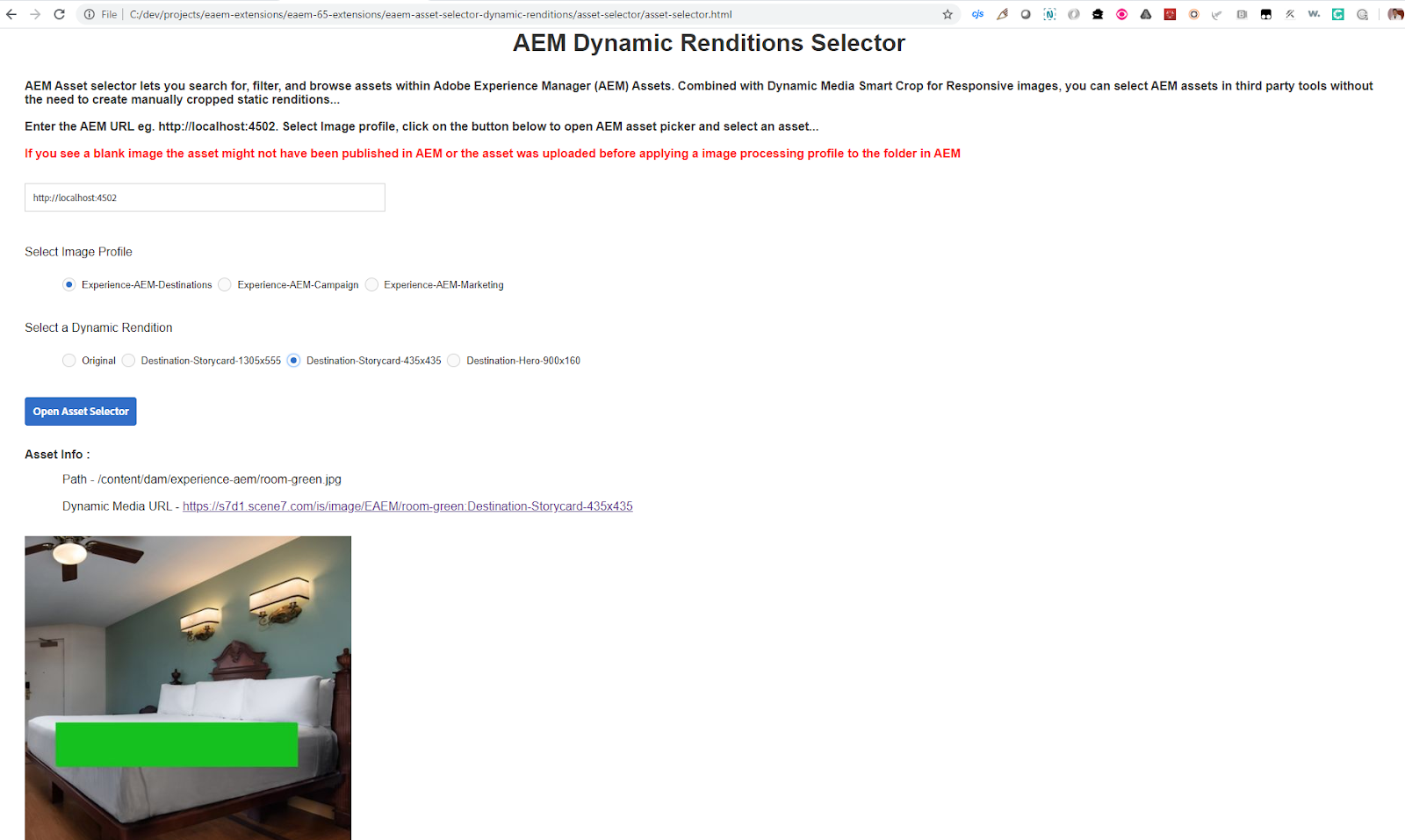
Combined with Dynamic Media Smart Crop, you can generate dynamic rendition urls (scene7 delivery urls) for creating intelligent responsive crops for various device breakpoints, replacing the need for static renditions (eg. doing manual cropping using photoshop)...

For setting up AEM with Dynamic Media Scene7 check this post

Demo | Source Code | Github


Solution


1) Assuming AEM is setup with Dynamic Media Scene7 (check this post for how to) create the Image Profiles by accessing Tools > Assets > Image Profiles or http://localhost:4502/mnt/overlay/dam/gui/content/processingprofilepage/imageprocessingprofiles.html/conf/global/settings/dam/adminui-extension/imageprofile

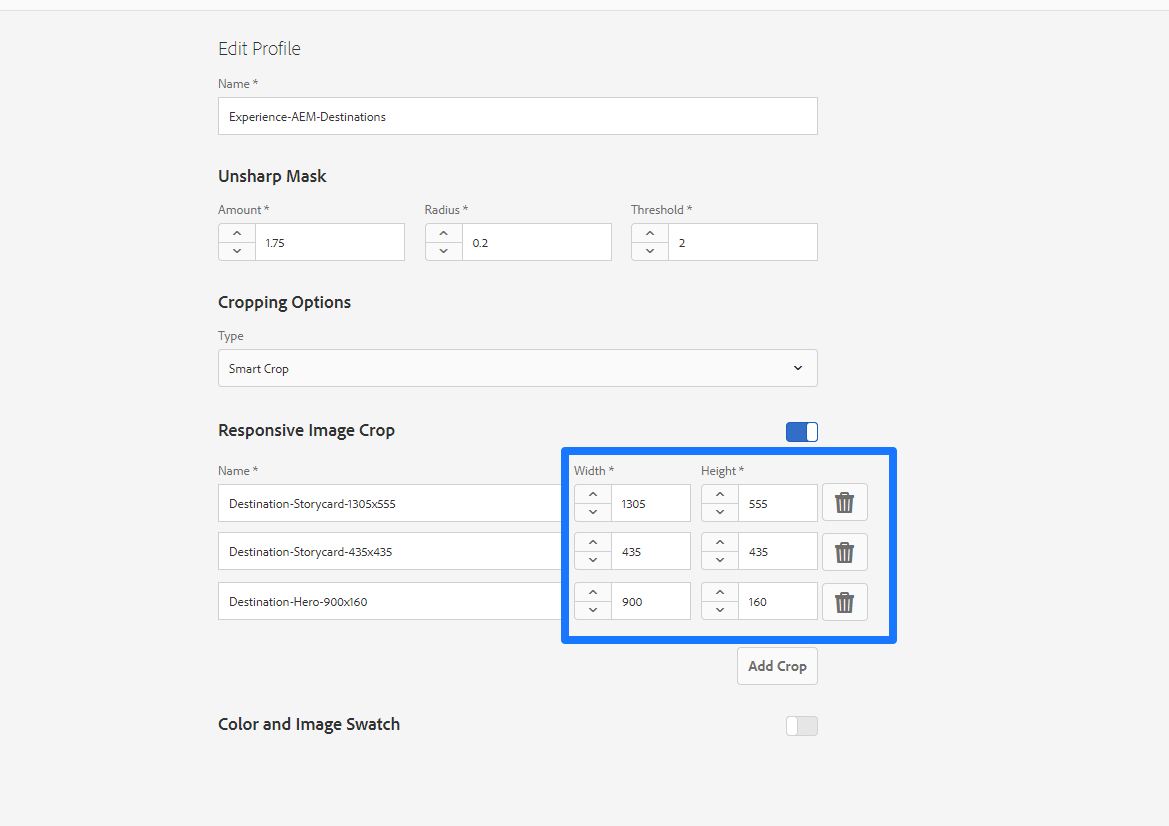
2) Click Create to create an Image Profile,  give it a name, select the type as Smart Crop, add Responsive Image Crop breakpoints and click Save


3) Optionally create few processing profiles for customer specific purposes (only one image processing profile can be active on a folder ). The profiles are shown in asset selector page created to show image dynamic renditions...


4) Assign the Image Profile to a folder by selecting it and clicking Apply Processing Profile to Folder(s)


5) For accessing and showing the profiles in an external page, create read only authentication handler apps.experienceaem.assets.EAEMReadonlyAuthenticationHandler with the following code

package apps.experienceaem.assets;

import org.apache.commons.lang3.StringUtils;
import org.apache.sling.auth.core.spi.AuthenticationHandler;
import org.apache.sling.auth.core.spi.AuthenticationInfo;
import org.apache.sling.jcr.api.SlingRepository;
import org.apache.sling.jcr.resource.api.JcrResourceConstants;
import org.osgi.service.component.annotations.Activate;
import org.osgi.service.component.annotations.Component;
import org.osgi.service.component.annotations.Reference;
import org.osgi.service.metatype.annotations.AttributeDefinition;
import org.osgi.service.metatype.annotations.AttributeType;
import org.osgi.service.metatype.annotations.Designate;
import org.osgi.service.metatype.annotations.ObjectClassDefinition;
import org.slf4j.Logger;
import org.slf4j.LoggerFactory;

import javax.jcr.Session;
import javax.jcr.SimpleCredentials;
import javax.servlet.*;
import javax.servlet.http.HttpServletRequest;
import javax.servlet.http.HttpServletResponse;
import java.io.IOException;

import static org.osgi.framework.Constants.SERVICE_RANKING;

@Component(
        service = { AuthenticationHandler.class, Filter.class },
        immediate = true,
        property = {
            SERVICE_RANKING + ":Integer=" + 9999,
            AuthenticationHandler.PATH_PROPERTY + "=/content/dam",
            AuthenticationHandler.PATH_PROPERTY + "=/conf",
            "service.description=Experience AEM Ready only Authentication Handler",
            "sling.filter.scope=REQUEST"
        })
@Designate(ocd = EAEMReadonlyAuthenticationHandler.Configuration.class)
public class EAEMReadonlyAuthenticationHandler implements AuthenticationHandler, Filter  {
    private static final Logger log = LoggerFactory.getLogger(EAEMReadonlyAuthenticationHandler.class);

    private static String AUTH_TYPE_ASSET_SELECTOR = "EAEM_ASSET_SELECTOR";

    private static final String SESSION_REQ_ATTR = EAEMReadonlyAuthenticationHandler.class.getName() + ".session";

    private String readOnlyUser = "";

    @Reference
    private SlingRepository repository;

    @Reference(target = "(service.pid=com.day.crx.security.token.impl.impl.TokenAuthenticationHandler)")
    private AuthenticationHandler wrappedAuthHandler;

    @Activate
    protected void activate(final Configuration config) {
        readOnlyUser = config.read_only_user();
    }

    public AuthenticationInfo extractCredentials(HttpServletRequest request, HttpServletResponse response) {
        AuthenticationInfo authInfo = null;

        String authType = request.getParameter("authType");

        if(StringUtils.isEmpty(authType) || !authType.equals(AUTH_TYPE_ASSET_SELECTOR)){
            return wrappedAuthHandler.extractCredentials(request, response);
        }

        Session adminSession = null;

        try{
            adminSession = repository.loginAdministrative(null);

            Session userSession = adminSession.impersonate(new SimpleCredentials(readOnlyUser, new char[0]));

            request.setAttribute(SESSION_REQ_ATTR, userSession);

            authInfo = new AuthenticationInfo(AUTH_TYPE_ASSET_SELECTOR);

            authInfo.put(JcrResourceConstants.AUTHENTICATION_INFO_SESSION, userSession);
        }catch(Exception e){
            log.error("Error could not create session for authType - " + authType, e);
            return AuthenticationInfo.FAIL_AUTH;
        }finally {
            if (adminSession != null) {
                adminSession.logout();
            }
        }

        return authInfo;
    }

    public boolean requestCredentials(HttpServletRequest httpServletRequest, HttpServletResponse httpServletResponse) throws IOException {
        return wrappedAuthHandler.requestCredentials(httpServletRequest, httpServletResponse);
    }

    public void dropCredentials(HttpServletRequest httpServletRequest, HttpServletResponse httpServletResponse) throws IOException {
        wrappedAuthHandler.dropCredentials(httpServletRequest, httpServletResponse);
    }

    public void doFilter(ServletRequest request, ServletResponse response, FilterChain chain)
                            throws IOException, ServletException {
        Session userSession = (Session) request.getAttribute(EAEMReadonlyAuthenticationHandler.SESSION_REQ_ATTR);

        if (userSession != null) {
            request.removeAttribute(EAEMReadonlyAuthenticationHandler.SESSION_REQ_ATTR);
        }

        chain.doFilter(request, response);

        if (userSession != null) {
            userSession.logout();
        }
    }

    public void init(FilterConfig filterConfig) throws ServletException {
    }

    public void destroy() {
    }

    @ObjectClassDefinition(name = "EAEMReadonlyAuthenticationHandler Configuration")
    public @interface Configuration {

        @AttributeDefinition(
                name = "Read only user",
                description = "Read only user for accessing asset metadata json",
                type = AttributeType.STRING)
        String read_only_user() default "eaem-read-only-user";
    }
}

6) The authentication handler provides readonly access to nodes in paths /content/dam and /conf, when the url contains query parameter authType=EAEM_ASSET_SELECTOR.It needs a read only user to impersonate, so create the user eg. eaem-read-only-user, provide read only permission on /content/dam and /conf eg. http://localhost:4502/security/permissions.html/principal/eaem-read-only-user?filter=user


7) Configure the read only user in the EAEMReadonlyAuthenticationHandler osgi properties http://localhost:4502/system/console/configMgr/apps.experienceaem.assets.EAEMReadonlyAuthenticationHandler


8) Authentication handler uses repository.loginAdministrative(null) to get an admin session. To allow administrative login in code whitelist the bundle (best practice is to get a session using service user)


9) Since the calls to asset metadata in AEM are made from an external site, set the CORS policy to allow origin Access-Control-Allow-Origin


10) Create the standalone page for loading asset selector and showing dynamic renditions eg. eaem-asset-selector-dynamic-renditions\asset-selector\asset-selector.html. It can be written using any javascript framework (eg. just jQuery), the following sample uses CoralUI

<html lang="en">
<head>
    <meta charset="utf-8">
    <meta name="viewport" content="width=device-width,user-scalable=no,initial-scale = 1.0,maximum-scale = 1.0">
    <title>Experience AEM Asset Selector</title>
    <script src="https://cdnjs.cloudflare.com/ajax/libs/underscore.js/1.9.1/underscore-min.js"></script>
    <script src="https://helpx.adobe.com/experience-manager/6-4/sites/developing/using/reference-materials/coral-ui/coralui3/js/libs/moment.js"></script>
    <script src="https://helpx.adobe.com/experience-manager/6-4/sites/developing/using/reference-materials/coral-ui/coralui3/js/libs/jquery.js"></script>
    <script src="https://helpx.adobe.com/experience-manager/6-4/sites/developing/using/reference-materials/coral-ui/coralui3/js/coral.js"></script>
    <script src="asset-selector.js"></script>
    <link rel="stylesheet" type="text/css"
          href="https://helpx.adobe.com/experience-manager/6-4/sites/developing/using/reference-materials/coral-ui/coralui3/css/coral.css">
    <link rel="stylesheet" type="text/css" href="asset-selector.css">
</head>
<body>
<div>
    <h1 class="coral-Heading" style="text-align: center">AEM Dynamic Renditions Selector</h1>
</div>
<div>
    <h4 class="coral-Heading">
        AEM Asset selector lets you search for, filter, and browse assets within Adobe Experience Manager (AEM) Assets. Combined with Dynamic Media Smart Crop for Responsive images, you can select AEM assets in third party tools without the need to create manually cropped static renditions...
        <br><br>
        Enter the AEM URL eg. http://localhost:4502. Select Image profile, click on the button below to open AEM asset picker and select an asset...
        <br><br>
        <font color="red"> If you see a blank image the asset might not have been published in AEM or the asset was uploaded before applying a image processing profile to the folder in AEM</font>
    </h4>
</div>
<div>
    <div style="padding: 0 0 15px 0">
        <input is="coral-textfield" type="text" value="http://localhost:4502"
               id="aem-host-url" size="100" style="width: 30rem">
    </div>
</div>
<div>
    <label>Select Image Profile</label>

    <div class="coral-RadioGroup" id="dyn-image-profiles-grp">
    </div>
</div>
<div>
    <label>Select a Dynamic Rendition</label>
    <div class="coral-RadioGroup" id="dyn-renditions-grp">
    </div>
</div>
<div>
    <button is="coral-button" id="open-asset-picker" style="text-align: center" variant="primary">
        Open Asset Selector
    </button>
</div>
<div>
    <h4 class="coral-Heading">Asset Info : </h4>

    <div id="asset-info">No asset selected</div>

    <img id="aem-image" src=""/>
</div>
</body>
</html>

11) Add the necessary JS code in eaem-asset-selector-dynamic-renditions\asset-selector\asset-selector.js to load the asset picker, select an asset and show the dynamic renditions

(function(){
    var ASSET_SELECTOR_ID = "aem-asset-selector",
        AUTH_TYPE_ASSET_SELECTOR = "authType=EAEM_ASSET_SELECTOR",
        ASSET_SELECTOR_URL = "/aem/assetpicker",
        IMAGE_PROFILES_URL = "/conf/global/settings/dam/adminui-extension/imageprofile.1.json",
        assetsSelected, imageProfiles = {};

    $(document).ready(initComponents);

    function addHostAndAuthType(url){
        if(!url || url.includes(AUTH_TYPE_ASSET_SELECTOR)){
            return url;
        }

        var host = $("#aem-host-url").val();

        if(!url.startsWith(host)){
            url = $("#aem-host-url").val() + url;
        }

        if(url.includes("?")){
            return (url + "&" + AUTH_TYPE_ASSET_SELECTOR);
        }

        return (url + "?" + AUTH_TYPE_ASSET_SELECTOR);
    }

    function loadImageProfiles(){
        $("#dyn-image-profiles-grp").html("");

        $("#dyn-renditions-grp").html("");

        $.ajax(addHostAndAuthType(IMAGE_PROFILES_URL)).done(handler).fail(function(){
            alert("Error getting image profile. Check AEM host value")
        });

        function handler(data){
            if(!data["jcr:primaryType"]){
                alert("Error getting image profiles");
                return;
            }

            _.each(data, function(imgProfile, key){
                if(key.startsWith("jcr:") || ( imgProfile["crop_type"] != "crop_smart" ) ){
                    return;
                }

                var crops = [];

                _.each(imgProfile["banner"].split("|"), function(crop){
                    crops.push(crop.substring(0,crop.indexOf(",")));
                });

                imageProfiles[key] = crops;
            });

            addImageProfilesRadioGroup(imageProfiles);
        }
    }

    function addImageProfilesRadioGroup(){
        var html = "";

        _.each(imageProfiles, function(crops, profileName){
            html = html + '<coral-radio name="dyn-image-profiles" value="' + profileName + '">' + profileName + '</coral-radio>';
        });

        $("#dyn-image-profiles-grp").html(html);

        $("[name='dyn-image-profiles']").change(addSmartCropsRadioGroup);
    }

    function addSmartCropsRadioGroup(){
        var selProfile = $("input[name='dyn-image-profiles']:checked").val();

        var html = '<coral-radio name="dyn-renditions" value="original" checked>Original</coral-radio>';

        _.each(imageProfiles, function(crops, profileName){
            if(profileName != selProfile){
                return;
            }

            _.each(crops, function(crop){
                html = html + '<coral-radio name="dyn-renditions" value="' + crop + '">' + crop + '</coral-radio>';
            });
        });

        $("#dyn-renditions-grp").html(html);

        $("[name='dyn-renditions']").change(setDynamicRenditionImage);

        setDynamicRenditionImage();
    }

    function createDialog(){
        var selUrl = $("#aem-host-url").val() + ASSET_SELECTOR_URL,
            html = "<iframe width='1500px' height='800px' frameBorder='0' src='" + selUrl + "'></iframe>";

        var dialog = new Coral.Dialog().set({
            id: ASSET_SELECTOR_ID,
            content: {
                innerHTML: html
            }
        });

        document.body.appendChild(dialog);
    }

    function hideDialog() {
        var dialog = document.querySelector('#' + ASSET_SELECTOR_ID);

        dialog.hide();
    }

    function showDialog(){
        var dialog = document.querySelector('#' + ASSET_SELECTOR_ID);

        dialog.show();

        var $dialog = $(dialog);

        adjustHeader($dialog);
    }

    function adjustHeader($dialog){
        $dialog.find(".coral3-Dialog-header").remove().find(".coral3-Dialog-footer").remove();
    }

    function registerReceiveDataListener(handler) {
        if (window.addEventListener) {
            window.addEventListener("message", handler, false);
        } else if (window.attachEvent) {
            window.attachEvent("onmessage", handler);
        }
    }

    function receiveMessage(event) {
        var message = JSON.parse(event.data);

        if(message.config.action == "close"){
            hideDialog();
            return;
        }

        assetsSelected = message.data;

        setAssetInfo("original");

        $("#aem-image").attr("src", assetsSelected[0].url);

        $("input[name='dyn-renditions']")[0].checked = true;

        var dialog = document.querySelector('#' + ASSET_SELECTOR_ID);

        dialog.hide();
    }

    function setAssetInfo(dynRendition, dynRendUrl){
        var assetInfo = "Path - " + assetsSelected[0].path;

        if(dynRendition != "original"){
            assetInfo = assetInfo + "<BR><BR>" + "Dynamic Media URL - <a href='" + dynRendUrl+ "' target='_blank'>" + dynRendUrl + "</a>";
        }

        $("#asset-info").html(assetInfo);
    }

    function setDynamicRenditionImage(){
        var dynRendition = $("input[name='dyn-renditions']:checked").val(),
            $aemImage = $("#aem-image");

        if(!$aemImage.attr("src")){
            return;
        }

        if(dynRendition == "original"){
            $aemImage.attr("src", addHostAndAuthType(assetsSelected[0].url));

            setAssetInfo(dynRendition);

            return;
        }

        $.ajax(addHostAndAuthType(assetsSelected[0].url + ".2.json")).done(handler);

        function handler(data){
            if(!data["jcr:content"]){
                alert("Error getting asset metadata");
                return;
            }

            var metadata = data["jcr:content"]["metadata"],
                dynRendUrl = metadata["dam:scene7Domain"] + "is/image/" + metadata["dam:scene7File"] + ":" + dynRendition;

            $aemImage.attr("src", dynRendUrl);

            setAssetInfo(dynRendition, dynRendUrl);
        }
    }

    function initComponents(){
        loadImageProfiles();

        registerReceiveDataListener(receiveMessage);

        $("#open-asset-picker").click(function(){
            createDialog();

            showDialog();
        });

        $("#aem-host-url").change(loadImageProfiles);
    }
}());


12) The asset picker url /aem/assetpicker is loaded in an iFrame added in a Coral.Dialog. when user selects an asset, the picker fires message event, captured by the receiveMessage() function and selected assets specific data is extracted from event object...

13) The dynamic rendition of an asset in AEM asset details eg. http://localhost:4502/assetdetails.html/content/dam/experience-aem/room-green.jpg


14) The asset picker shown in an external site/page eg. file:///C:/dev/projects/eaem-extensions/eaem-65-extensions/eaem-asset-selector-dynamic-renditions/asset-selector/asset-selector.html


15) Selected AEM asset dynamic renditions shown in the external site / page


16) Test the image responsiveness using embed code provided in AEM asset details page and adding it in a standalone html


AEM 6540 - Show File size in units in Assets Metadata Editor

Goal


Adding file size (./jcr:content/metadata/dam:size) field in metadata editor shows the size in bytes. The simple logic in this extension is for showing size in other units (KB, MB, GB etc.)

Thank you internet for the conversion code snippet

Package Install | Github


Product


Extension


Solution


1) Login to CRXDE Lite (http://localhost:4502/crx/de), create folder /apps/eaem-assets-metadata-file-size-units

2) Create node /apps/eaem-assets-metadata-file-size-units/clientlib of type cq:ClientLibraryFolder, add String[] property categories with value [dam.gui.coral.metadataeditor], String[] property dependencies with value lodash.

3) Create file (nt:file) /apps/eaem-assets-metadata-file-size-units/clientlib/js.txt, add

                        file-size-units.js

4) Create file (nt:file) /apps/eaem-assets-metadata-file-size-units/clientlib/file-size-units.js, add the following code

(function($, $document) {
    var FILE_SIZE_NAME = "./jcr:content/metadata/dam:size",
        initialized = false;

    $document.on("foundation-contentloaded", init);

    function init(){
        if(initialized){
            return;
        }

        initialized = true;

        convertFileSize();
    }

    function convertFileSize(){
        var $damSize = $("[name='" + FILE_SIZE_NAME + "']");

        if(_.isEmpty($damSize)){
            return;
        }

        var sizeInBytes = $damSize.val();

        $damSize.val(!sizeInBytes ?  "Unavailable" : formatBytes(parseInt(sizeInBytes), 2));
    }

    function formatBytes(bytes, decimals) {
        if (bytes === 0){
            return '0 Bytes';
        }

        const k = 1024;
        const dm = decimals < 0 ? 0 : decimals;
        const sizes = ['Bytes', 'KB', 'MB', 'GB', 'TB', 'PB', 'EB', 'ZB', 'YB'];
        const i = Math.floor(Math.log(bytes) / Math.log(k));

        return parseFloat((bytes / Math.pow(k, i)).toFixed(dm)) + ' ' + sizes[i];
    }
}(jQuery, jQuery(document)));

AEM 6540 - Hide Tag Root Paths in Metadata Editor of AEM Assets

Goal


When the Tag paths are too deep and an asset is tagged with tens of tags the UI may look cluttered, so you may want to hide the root paths which are obvious and generally customer specific....

Demo | Package Install | Github


Product


Extension


Solution


1) Login to CRXDE Lite (http://localhost:4502/crx/de), create folder /apps/eaem-hide-tag-root-paths

2) Create node /apps/eaem-hide-tag-root-paths/clientlib of type cq:ClientLibraryFolder, add String[] property categories with value [dam.gui.coral.metadataeditor], String[] property dependencies with value lodash.

3) Create file (nt:file) /apps/eaem-hide-tag-root-paths/clientlib/js.txt, add

                        hide-root-paths.js

4) Create file (nt:file) /apps/eaem-hide-tag-root-paths/clientlib/hide-root-paths.js, add the following code

(function($, $document) {
    var HIDE_TAGS_WITH_PREFIX = "we-retail",
        HIDE_LEVELS = 2;

    $document.on("foundation-contentloaded", hideRootPaths);

    function hideRootPaths(){
        var $autoCompletes = $("foundation-autocomplete");

        if(_.isEmpty($autoCompletes)){
            return;
        }

        _.each($autoCompletes, function(autoComplete){
            if(autoComplete.eaemExtended){
                return;
            }

            extendDisplay(autoComplete);

            extendPicker(autoComplete);

            autoComplete.eaemExtended = true;
        });
    }

    function extendPicker(autoComplete){
        $(autoComplete).on("change", function(){
            extendDisplay(this);
        })
    }

    function extendDisplay(autoComplete){
        var $autoComplete = $(autoComplete),
            $tags = $autoComplete.find("coral-tag");

        _.each($tags, function(tag){
            var $tag = $(tag), tagDisplayValue,
                $tagLabel = $tag.find("coral-tag-label");

            if(!$tag.attr("value").trim().startsWith(HIDE_TAGS_WITH_PREFIX)){
                return;
            }

            tagDisplayValue = _.isEmpty($tagLabel) ? $tag.html() : $tagLabel.html();

            if(_.isEmpty($tagLabel)){
                $tag.html(cutLevels(tagDisplayValue));
            }else{
                $tagLabel.html(cutLevels(tagDisplayValue));
            }
        });
    }

    function cutLevels(tagValue){
        var tagRetValue = tagValue;

        for (var index = 0 ; index < HIDE_LEVELS; index++){
            if(index == 0){
                tagRetValue = tagRetValue.substring(tagRetValue.indexOf(":") + 1);
            }else if(tagRetValue.includes("/")){
                tagRetValue = tagRetValue.substring(tagRetValue.indexOf("/") + 1);
            }

            tagRetValue = tagRetValue.trim();
        }

        return tagRetValue;
    }
}(jQuery, jQuery(document)));

AEM 6540 - Accessing AEM Assets in ACS (Adobe Campaign Standard) using Assets Core Service for Emails

Goal


Configure OnPrem AEM Assets Instance to share Images with Asset Core Service for using them in emails created and delivered via ACS (Adobe Campaign Standard)

For product documentation check this post

For a more direct method for selecting AEM Assets in ACS check this post


Solution


Integrating AEM Assets with Assets Core Service

1) Assuming you are provisioned for Assets Core Service and Adobe Campaign Standard in Experience Cloud, the following icons should be active in solution switcher...


2) Following are the URLs for instances used...

                      AEM: http://localhost:4502/assets.html
                      ACS: https://acs959.msavlab.adobe.com/
                      Assets Core Service: https://ags959.experiencecloud.adobe.com/assets.html/content/dam/mac/ags959

3) Login to https://legacy-oauth.cloud.adobe.io/login with your Adobe ID to create a JWT application for integrating the two products - Local OnPrem AEM and Assets Core Services

4) Select your org and click Add Application

5) Enter the details and click Add, for eg.

                          Application Name : Experience AEM Assets Core Sync Service
                          Organization: Adobe AGS959
                          Scope: cc-share, dam-read, dam-sync, dam-write


6) Your application is now created, copy the Application ID


7) Login to local OnPrem AEM and access Tools > Cloud Services > Legacy Cloud Services


8) Click Configure Now in Adobe Experience Cloud section


9) Enter any title eg. Experience AEM Assets Core Sync, click Create


10) Enter the details for Tenant info and click Ok (creating the configuration in /etc/cloudservices/marketingcloud/experience-aem-assets-core-sync-service), for eg.

                         Tenant URL: https://ags959.experiencecloud.adobe.com
                         Client ID:  fxxxxxxxxx-experience-aem-assets-core-service (Application ID from JWT app above)
                         Synchronization is: enabled


11) Click Display Public Key in the configuration and copy the resulting content


12) Paste the Public key in JWT application created in Step 5 and click Save


13) Test your sync by accessing AEM Assets and sharing a folder with Experience Cloud (in the screen shot below, drop down shows Marketing Cloud)


14) You should see the assets synced to Assets core service of your org eg. https://ags959.experiencecloud.adobe.com/assets.html/content/dam/mac/ags959/experience-aem


Accessing Assets in ACS

1) Integrating AEM with Assets Core Service, the images are now shared and can be used in Email campaigns created using Campaign Standard (ACS)

2) Access ACS instance by clicking on the link in Experience Cloud (https://experience.adobe.com/) solution switcher

3) There are a number of ways to get customer profiles into ACS, assuming you don't have any customer profiles yet (to send an email), from the Home screen click on Customer profiles and click Create


4) Enter the profile details


5) From the Home screen select Create an Email, click Next


6) Select Send via Email, click Next


7) Enter email properties, eg. Label, click Next

8) Drag Select a profile and select the profile created in step 2 above, click Next


9) Select new Use the Email Designer option


10) Select 1:1 column from Structure Components, drag Image from Content Components and Click Open assets core service


11) Browse and select the asset from picker and click Save


12) Click on Prepare to run the prechecks, find number of deliveries etc.


13) Click Confirm to send the email


AEM 6530 - Quick Instructions to Install AEM with S3 Datastore on CentOS

Goal


Install AEM 65 on CentOS with Amazon S3 bucket configured as Datastore

For more detail check aem documentation

Thank you Bryan Stopp for the help with aem service commands


Solution


1) Assuming you are accessing the CentOS server from Windows client using ssh, set the following in  C:\Users\<user>\.ssh\config so the terminal doesn't timeout

                              ServerAliveInterval 120

2) Assuming you have an S3 bucket available with  name experience-aem-65 in region us-east-1

3) Download aws s3 connector from adobe software distribution eg. https://experience.adobe.com/#/downloads/content/software-distribution/en/aem.html?fulltext=s3connector*&orderby=%40jcr%3Acontent%2Fjcr%3AlastModified&orderby.sort=desc&layout=list&p.offset=0&p.limit=2

4) Upload the jdk jar, aem 65 jar, license.properties, s3 connector zip to a location on the server e.g. /mnt/crx/packages (here i used Filezilla)


5) Install Java

                              > sudo su
                              > mkdir /mnt/java
                              > cd /mnt/java
                              > tar -zxf /mnt/crx/packages/jdk-8u241-linux-x64.tar.gz -C .
                              > sudo update-alternatives --install /usr/bin/java java /mnt/java/jdk1.8.0_241/bin/java 1
                              > sudo vi ~/.bashrc
                                       # Set java environment
                               export JAVA_HOME=/mnt/java/jdk1.8.0_241
                               export PATH=${PATH}:${JAVA_HOME}/bin

6) Make sure you have read and write access to the S3 bucket (generally a IAM role is configured on the box to access S3 without credentials)
                              
                              > aws s3api list-objects --bucket experience-aem-65
                              > aws s3api put-object --bucket experience-aem-65 --key test --body some_text_file.txt

7) Unpack the AEM S3 bundle on server

                              > unzip com.adobe.granite.oak.s3connector-1.10.8.zip -d /mnt/crx/packages/s3

8) Unpack AEM

                              > sudo su
                              > cp /mnt/crx/packages/cq-quickstart-6.5.0-p4502.jar /mnt/crx/author/
                              > cp /mnt/crx/packages/license.properties /mnt/crx/author/
                              > cd /mnt/crx/author
                              > java -jar cq-quickstart-6.5.0-p4502.jar -unpack 

9) Copy the S3 bundle jars and config files

                              > sudo su
                              > cp -R /mnt/crx/packages/s3/jcr_root/libs/system/install /mnt/crx/author/crx-quickstart/install
                              > cp /mnt/crx/packages/s3/jcr_root/libs/system/config/org.apache.jackrabbit.oak.plugins.blob.datastore.S3DataStore.config /mnt/crx/author/crx-quickstart/install
                              > cp /mnt/crx/packages/s3/jcr_root/libs/system/config/org.apache.jackrabbit.oak.segment.SegmentNodeStoreService.config /mnt/crx/author/crx-quickstart/install
                              > chmod -R 777 /mnt/crx/author

10) Edit the S3 datastore config file to provide the following bucket info eg. /mnt/crx/author/crx-quickstart/install/org.apache.jackrabbit.oak.segment.SegmentNodeStoreService.config

     The following properties assume S3 IAM role was configured, otherwise you need to provide accessKey and secretKey as well.
     The other property secret is for sharing this data store with publish for binaryless replication

                              s3Bucket="experience-aem-65"
                              s3Region="us-east-1"
                              secret="eaem"

11) Install AEM with runmode crx3tar-nofds

                              > sudo su
                              > cd /mnt/crx/author
                              > java -jar cq-quickstart-6.5.0-p4502.jar -r crx3tar-nofds

12) To run AEM with service user

                              > sudo groupadd aem
                              > sudo useradd -M aem -g aem
                              > sudo chown -R aem:aem /mnt/crx/author
                              > vi /lib/systemd/system/aem.service
                                               [Unit]
                                               Description=Adobe Experience Manager
                                               After=network.target remote-fs.target nss-lookup.target
​
                                               [Service]
                                               Type=forking
                                               PIDFile=/mnt/crx/author/crx-quickstart/conf/cq.pid
                                               User=aem
                                               Group=aem
                                               ExecStart=/mnt/crx/author/crx-quickstart/bin/start
                                               ExecStop=/mnt/crx/author/crx-quickstart/bin/stop

                                               # We want systemd to give aem some time to finish gracefully, but still want
                                               # it to kill aem after TimeoutStopSec if something went wrong during the
                                               # graceful stop. Normally, Systemd sends SIGTERM signal right after the
                                               # ExecStop, which would kill aem. We are sending useless SIGCONT here to give
                                               # aem time to finish.
​
                                               TimeoutStopSec=4min
                                               KillSignal=SIGCONT
                                               PrivateTmp=true
​
                                               [Install]
                                               WantedBy=multi-user.target
                              > sudo chmod 644 /lib/systemd/system/aem.service
                              > sudo systemctl enable aem.service

13) Commands to run AEM

                              Start AEM:  sudo systemctl start aem
                              Stop AEM:  sudo systemctl stop aem
                              AEM Status:  sudo systemctl status aem